
Everything in one file — Claude, ChatGPT, and Copilot
All the skills below, in one file. Upload it under Plugins, not Skills. See the Claude, ChatGPT, or Microsoft 365 Copilot section above.
The Hands-on AI plugin bundles the seven AI Workflow Framework skills and their framework-agent orchestrator, the Knowledge Graph skill, and the two AI Registry skills. This page gets them into the AI tool you already use — the whole plugin where your platform supports it, or one skill at a time as a ZIP where it doesn’t. What’s inside is on the plugin page.
Pick the row that matches the tool you use most, then jump to that section. Nothing on the “For everyone” paths needs a terminal or any technical setup.
| I use… | Do this |
|---|---|
| Claude (claude.ai or the Claude app) | Install the plugin — or upload the ZIPs if your company blocks plugins or you’re on the Free plan. About 3 minutes, no terminal. |
| ChatGPT | Open the ChatGPT desktop app and install the plugin on any paid plan. Add marketplace is in the desktop app only; once installed, the skills work on the web and your phone too. No desktop app? Upload the ZIPs instead. About 3 minutes, no terminal. |
| Google Gemini | Upload the ZIPs in Gemini Spark (personal account) or Gemini Enterprise (work account). About 3 minutes, no terminal. |
| Microsoft 365 Copilot | Upload the plugin file in Cowork, or the ZIPs one at a time. About 5 minutes, no terminal. |
| A code editor or terminal (Claude Code, Cursor, Codex CLI, Gemini CLI, Antigravity) | See For builders at the bottom. A couple of commands or a folder on disk. |
Just want the files? Jump to the downloads — the seven framework skills, the Knowledge Graph skill, and the two AI Registry skills, one click each.
Claude has two places to work. The Claude app — on the web, desktop, and mobile — is where you converse, and in the desktop app Claude also works on files and folders on your computer. Cowork used to be a separate tab for that; it has merged into the Claude app (rolling out from September 2026), so if you still see a Cowork tab, it’s the same thing. Claude Code is for developers — skip it unless you’re a builder (see Claude Code below). The skills work everywhere in the Claude app; only the optional framework-agent orchestrator needs Claude working on your files in the desktop app.
Official docs: Use plugins in Claude · Use skills in Claude
What you need first: A Claude account. Options 1 and 2 (the plugin) need a paid plan — Pro, Max, Team, or Enterprise. Option 3 (the ZIPs) also works on the Free plan.
Step 1 — Turn on code execution (one time)
This lets Claude run skills — it does not give Claude access to your computer. On a Team or Enterprise plan, an admin turns this on for everyone under Organization settings → Skills; if the toggle isn’t there, ask them.
Before you start: In the left sidebar, click Customize. Do you see a Plugins tab? Yes → continue. No → you’re on the Free plan, or your company has turned personal plugins off. Skip to Option 3 below; it works on every plan.
jamesgray-ai/handsonai-pluginsYou’ll know it worked when: the handsonai card shows as installed, and when you start a new chat and type
Help me analyze AI workflow opportunities
Claude begins a short interview — asking about your role and the work you do most often — instead of giving a generic answer. In the desktop app you can also type / to see the skills listed, and the framework-agent orchestrator is available there.
Use this if Option 1 didn’t work, for example if Add marketplace fails or your company blocks GitHub. You get all the skills, from one file instead of from GitHub. (The optional framework-agent comes only with Option 1.) You still need the Plugins tab.
handsonai-plugin.zip into the Plugin file box (or click browse and choose it)You’ll know it worked when: you see the same signs as Option 1 above.
Updating: an uploaded plugin doesn’t update itself. When the changelog announces a new version, download the file again and upload it again.
Use this if you don’t have a Plugins tab (Free plan, or your company turned plugins off), or if you only want one or two skills.
Before you start: Step 1 (code execution) is done, and you can see Customize → Skills in the left sidebar — it’s there on every plan.
analyze.zipYou’ll know it worked when: you start a new chat, type “Help me analyze AI workflow opportunities”, and Claude begins the interview. Uploaded skills appear everywhere you use Claude on your account. The framework-agent orchestrator isn’t available this way — it’s plugin-only.
If it didn’t work:
The ChatGPT app (Mac, Windows, and Linux) has three modes: Chat, Work, and Codex. Skills run in Work — the toggle above the message box — and in the Codex tab (plugin skills work in Chat too). Codex is the developer mode; you don’t need it for this course, but the same skills work there.
Official docs: Skills in ChatGPT · Skills & Plugins
What you need first: A ChatGPT account and the ChatGPT desktop app (Mac, Windows, or Linux). You must be in the desktop app to add the marketplace — the Plugins page on chatgpt.com in a browser does not show Add a marketplace. Install the app from openai.com/chatgpt/desktop, sign in, and come back here. Once the plugin is installed, its skills also work on chatgpt.com and your phone; uploaded skills work in the app. All three options need a paid plan — Plus, Pro, Business, or Enterprise (not Free or Go). On Enterprise and Edu, skills are off until an admin turns them on.
Before you start: Open Plugins (in the left sidebar, or under Customize) and click Add in the top right. Do you see Add a marketplace? Yes → continue. No → first check you’re in the desktop app, not chatgpt.com in a browser — the button only appears in the app. If you are in the app, you’re on Free or Go, or your company manages plugins centrally. Try Option 2, or send your admin the For admins note below.
jamesgray-ai/handsonai-pluginsYou’ll know it worked when: you switch to Work (the toggle above the message box), type @ and start typing analyze, and the skill appears in the list. Pick it and send
Help me analyze AI workflow opportunities
ChatGPT begins a short interview about your role and the work you do most often. In the Codex tab, type $analyze instead.
Use this if Option 1 didn’t work, for example if adding the marketplace fails or your company blocks GitHub. You get all the skills, from one file instead of from GitHub.
handsonai-plugin.zipYou’ll know it worked when: Hands-on AI appears under Installed, and the @analyze check from Option 1 works.
Updating: an uploaded plugin doesn’t update itself. When the changelog announces a new version, download the file again and upload it again.
Use this if your company doesn’t let you add plugins, or if you only want one or two skills.
Before you start: Click Plugins in the left sidebar, then the Skills tab. Do you see a Create button? Yes → continue. No → you’re on Free or Go, or your admin hasn’t turned Skills on (Enterprise and Edu are off by default). On Free or Go, skills aren’t available in ChatGPT chat — the Codex tab can still use them from a folder on your computer; see OpenAI Codex under For builders.
analyze.zipYou’ll know it worked when: in Work, you type @analyze, pick the skill, send “Help me analyze AI workflow opportunities”, and ChatGPT begins the interview.
Where they work, in OpenAI’s words: “Standalone skills are available in the ChatGPT desktop app, Codex CLI, and IDE extension. Skills bundled in plugins are also available in Chat and Work across ChatGPT on the web, desktop, and mobile.” So uploaded skills stay in the app and Codex; the plugin’s skills also work on the web and your phone.
If it didn’t work:
@, or ask for the task in plain words?Gemini has two versions with skills. Which one you have depends on your Google account: a personal Google Account (gmail.com) uses Gemini Spark; a work or school account uses Gemini Enterprise, if your company has it. The skill files are the same either way. (Using Gemini CLI or Antigravity instead? See Gemini CLI / Antigravity under For builders.)
Official docs: Create & manage skills for Gemini Apps · Gemini Spark · Gemini Enterprise skills
What you need first: A personal Google Account (work and school accounts can’t use Spark), a Google AI Pro or Ultra subscription, and you need to be 18 or older. Spark isn’t available in the European Economic Area, the United Kingdom, Switzerland, or Nigeria.
Before you start: Open gemini.google.com and sign in with your personal account. Look in the sidebar. Do you see Switch to Spark? Yes → continue. No → check the requirements above.
analyze.zipThe same steps work in the Gemini app for Mac and in the Gemini app on your phone once Spark is on.
You’ll know it worked when: you start a task, type / and pick analyze (or just describe the task — Spark picks the skill automatically), send “Help me analyze AI workflow opportunities”, and Gemini begins a short interview about your role and your work.
To update a skill later: Skills → More (⋮) next to the skill → Replace skill → choose the new ZIP. To remove one: More → Delete.
Before you start: Open your company’s Gemini Enterprise web app. Do you see Skills in the left navigation, with a + button? Yes → continue. No → your edition (Frontline) or your admin’s settings don’t allow uploads. Ask your admin to upload the skills and share them with you.
analyze.zip (or browse for it), then click ImportYou’ll know it worked when: you type @analyze or /analyze in a chat (or just describe the task), send “Help me analyze AI workflow opportunities”, and Gemini begins the interview. Note that Gemini Enterprise skills don’t run inside its Agents — use them in chat.
If it didn’t work:
Microsoft 365 Copilot runs skills in Copilot Cowork. Cowork reads SKILL.md files from a folder in your OneDrive, and there’s an Upload skill button that puts them there for you.
Official docs: Cowork skills (Microsoft Learn) · Upload a skill
What you need first: A Microsoft 365 Copilot license, and your admin must have enabled Cowork (it’s generally available, but it uses usage-based billing that an admin turns on). Custom skills aren’t available in Cowork on mobile.
Before you start: Open Microsoft 365 Copilot. Do you see Cowork in the left navigation? Yes → continue. No → ask your IT admin to enable Cowork.
Adds every skill at once, from one file.
handsonai-plugin.zip into the box (or click choose a file)You’ll know it worked when: handsonai appears under Installed with its toggle on, and a new Cowork conversation that starts “Help me analyze AI workflow opportunities” begins the interview.
Updating: an uploaded plugin doesn’t update itself. When the changelog announces a new version, download the file again and upload it again.
If Cowork rejects the plugin, use Option 2 instead.
analyze.zip. Cowork checks the file and saves it to your OneDrive; the skill appears under Your skills after a few moments.If Cowork rejects the ZIP, use Option 3 instead.
analyze next to itanalyze folder in. The full path should be Documents/Cowork/skills/analyze/SKILL.mdYou’ll know it worked when: you start a new Cowork conversation, type “Help me analyze AI workflow opportunities”, and Cowork begins the interview. The skill shows up as a chip in the side panel under Skills.
If it didn’t work:
Documents/Cowork/skills/?Every “download” step on this page starts here. Click a button and the file downloads, usually to your Downloads folder. Don’t unzip it for Claude, ChatGPT, Gemini, or Copilot. Upload the file as-is.
Everything in one file — Claude, ChatGPT, and Copilot
All the skills below, in one file. Upload it under Plugins, not Skills. See the Claude, ChatGPT, or Microsoft 365 Copilot section above.
Or grab the skills one at a time. There are three sets; get the one for what you’re doing today.
AI Workflow Framework — 7 skills
One skill per framework step. New? Start with 1. Analyze and 2. Deconstruct — add the rest as you reach those steps.
Knowledge Graph — 1 skill
Builds a knowledge/ folder of pages about your work — clients, offerings, processes, people — that your AI keeps up to date.
Next: Knowledge Graph setup
AI Registry — 2 skills
Scaffolding Registry sets up your AI Registry. Indexing Registry keeps it tidy as it grows. Get both.
Next: AI Registry setup
You don’t need these to work through the framework. Grab them when you want to write up a finished workflow for your team. Run (Step 6) suggests the SOP skill for team workflows.
Want to see everything? The download page on GitHub lists every file. The newest release is at the top — click Assets to expand the list. You’ll also see framework-agent.zip there. Skip it: in the Claude app, the framework-agent orchestrator only works when it comes with the marketplace plugin (Option 1). That file is for builders who set up agents by hand.
Use AI through a code editor or terminal? These paths use a couple of commands or a folder on disk.
Claude Code has full plugin support. Two commands install all seven skills plus the framework-agent orchestrator and the /handsonai: slash commands.
Official docs: Extend Claude with Skills · Discover and Install Plugins
What you need first: Claude Code running in your terminal, or the Claude app with the Code tab. If you haven’t installed Claude Code yet, see the Claude Code setup guide. Claude Code needs a paid Claude plan.
Step 1 — Add the marketplace (one time)
Type this into Claude Code and press Enter:
/plugin marketplace add jamesgray-ai/handsonai-pluginsStep 2 — Install the plugin
/plugin install handsonai@handsonaiStep 3 — Check it worked
Type /plugin list and press Enter. You should see handsonai with its skills. Then type /handsonai:analyze — the Analyze skill starts and begins asking you questions. You can also just describe what you need in plain words and Claude picks the skill.
jamesgray-ai/handsonai-plugins. If a “Couldn’t load the repository list” message appears, click “Use ‘jamesgray-ai/handsonai-plugins’” — the warning is harmless.For updates, uninstalling, and troubleshooting, see Using Plugins.
Cursor reads skill files from your project folder automatically.
Official docs: Agent Skills — Cursor
What you need first: Cursor installed and a project folder open. If you haven’t installed Cursor yet, see the Editor Setup guide. Your project root is the top-level folder you have open in Cursor — that’s where Cursor looks for skills.
Step 1 — Download and unzip a skill
analyzeStep 2 — Create the skills folder in your project
.agents, and inside it a folder called skills. You should now have your-project/.agents/skills/Step 3 — Move the skill folder in
Move the analyze folder into .agents/skills/. You should now have your-project/.agents/skills/analyze/SKILL.md.
Step 4 — Restart Cursor and test
Close and reopen Cursor (or reopen the project). In Cursor’s chat, type “Use the analyze skill to help me find AI workflow opportunities.”
You’ll know it worked when: Cursor begins the structured interview about your role and your work instead of answering generically.
If it didn’t work: check the path is exactly your-project/.agents/skills/analyze/SKILL.md (not analyze/analyze/…), that the project you have open is the one with the folder, and that you reopened Cursor after adding it.
Repeat Steps 1 and 3 for each skill you need.
Codex reads skill folders from disk. This path works on every ChatGPT plan, including Free, and it’s how you get the skills into Codex without uploading them. (Installing the plugin from the ChatGPT section above also puts the skills into the Codex tab of the ChatGPT app — but plugins don’t load in the IDE extension, so use this folder path there.)
Official docs: Build skills — Codex
What you need first: Codex — the CLI, the Codex tab in the ChatGPT app, or the IDE extension. If you haven’t set it up, see Getting Started with OpenAI.
Step 1 — Download and unzip a skill
analyzeStep 2 — Put it where Codex looks
Codex reads skills from a personal folder that works in every project, or from a folder inside one project. Pick one:
analyze folder into .agents/skills/ inside your home folder — so the path is ~/.agents/skills/analyze/SKILL.md. From a terminal: mkdir -p ~/.agents/skills first if the folder doesn’t exist..agents/skills/ at the top of that project — your-project/.agents/skills/analyze/SKILL.md. From a terminal in the project: mkdir -p .agents/skills.Step 3 — Test it
Open Codex and type $ — the skills appear in a list. Pick analyze, or say “Use the analyze skill to help me find AI workflow opportunities.” Type /skills to see everything Codex has loaded.
You’ll know it worked when: analyze appears in the $ list and Codex begins the structured interview.
If it didn’t work: check the path ends in .agents/skills/analyze/SKILL.md, start a new Codex thread (skills load at the start of a thread), and make sure the folder is in your home folder or in the project you have open.
Repeat Steps 1–2 for each skill you need.
With the Codex CLI installed, two commands add all the skills at once — the same plugin the ChatGPT app installs:
codex plugin marketplace add jamesgray-ai/handsonai-pluginscodex plugin add handsonai@handsonaiStart a new Codex thread afterwards so it picks the skills up.
Google’s developer tools — Gemini CLI (command line) and Antigravity (AI-native IDE) — read skill folders from your project automatically. (Using the Gemini app or Gemini Enterprise instead? See Google Gemini under For everyone.)
Official docs: Agent Skills — Gemini CLI · Getting Started with Antigravity Skills
What you need first: Gemini CLI or Antigravity installed. See Getting Started with Google Gemini for Gemini CLI, or download Antigravity from antigravity.google. Your project root is the top-level folder you’re working in.
Step 1 — Download and unzip a skill
analyzeStep 2 — Create the skills folder in your project
In your project folder, create .gemini/skills/. From a terminal:
mkdir -p .gemini/skillsOr in Finder / File Explorer: create a folder called .gemini inside your project, then skills inside that.
Step 3 — Move the skill folder in
Move analyze into .gemini/skills/ (or .agents/skills/). You should now have your-project/.gemini/skills/analyze/SKILL.md.
Step 4 — Test it
Open the project in Gemini CLI or Antigravity and say “Use the analyze skill to help me find AI workflow opportunities.” Skills are discovered automatically.
You’ll know it worked when: Gemini begins the structured interview about your role and your work.
If it didn’t work: check the path ends in skills/analyze/SKILL.md, that you started the tool from (or opened) the project that has the folder, and restart Antigravity if it was already open.
Repeat Steps 1 and 3 for each skill you need.
Using a different tool (VS Code Copilot, Perplexity, or another platform)? See How to Add Skills to Your Platform. For a full comparison of platforms — where skills run, what they can access — see Platform Implementations.
Work out which of three things is wrong, then go to the right place:
| The problem is… | Go to |
|---|---|
| The download — a link 404s, a ZIP won’t open | The download page on GitHub — the newest release is at the top; click Assets. If a file is missing there, open an issue. |
| The platform — a menu isn’t where this page says, an upload is rejected, a plan question | The vendor’s own help page, linked at the top of each section above (Anthropic, OpenAI, Google, Microsoft). Their pages change faster than ours; if a label differs, trust the screen. |
| The skill — it installed but does something odd | The skill’s own page: Analyze, Deconstruct, Design, Build, Test, Run, Improve. Course students: ask in the course channel. |
Skills and the framework-agent evolve as the methodology improves — new skills get added, prompts get refined, reference material gets sharper. You don’t need to check for updates yourself: changes are announced in the changelog, and the release notes on GitHub list exactly what changed.
If you installed the plugin: updating is a two-step process — the marketplace and the installed plugin are tracked separately, so checking for updates is not the same as installing them.
handsonai-plugins marketplace and choose Check for updates. This pulls the latest version from GitHub.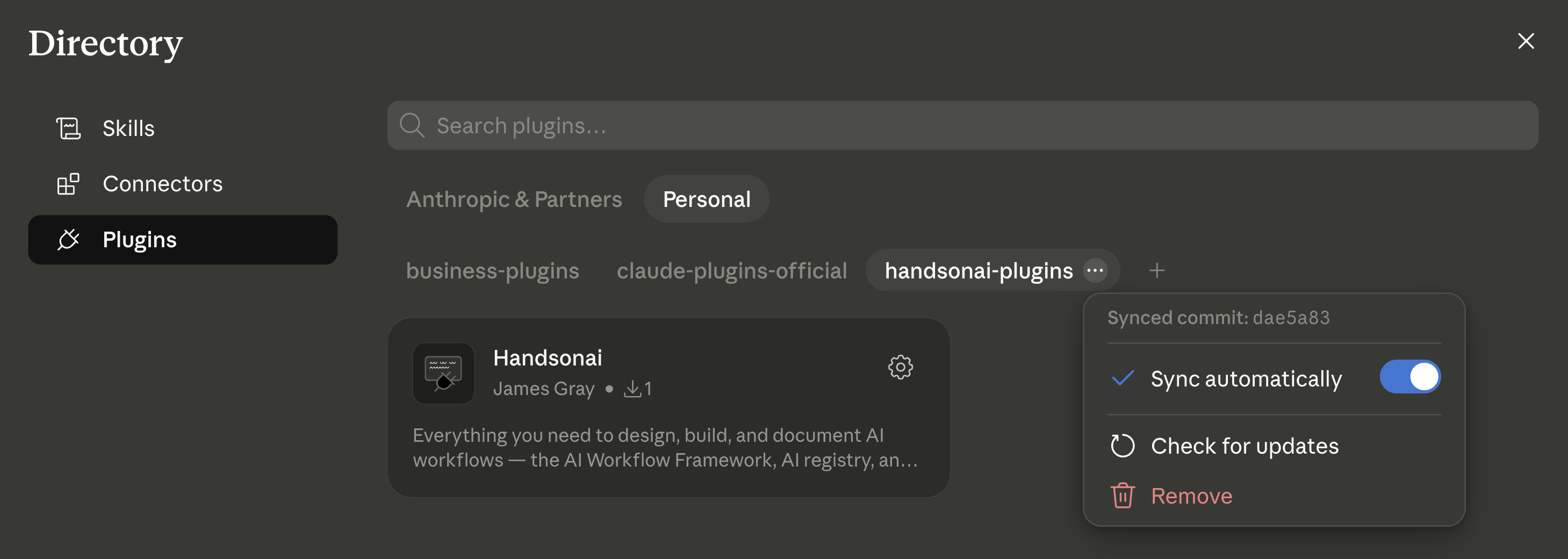
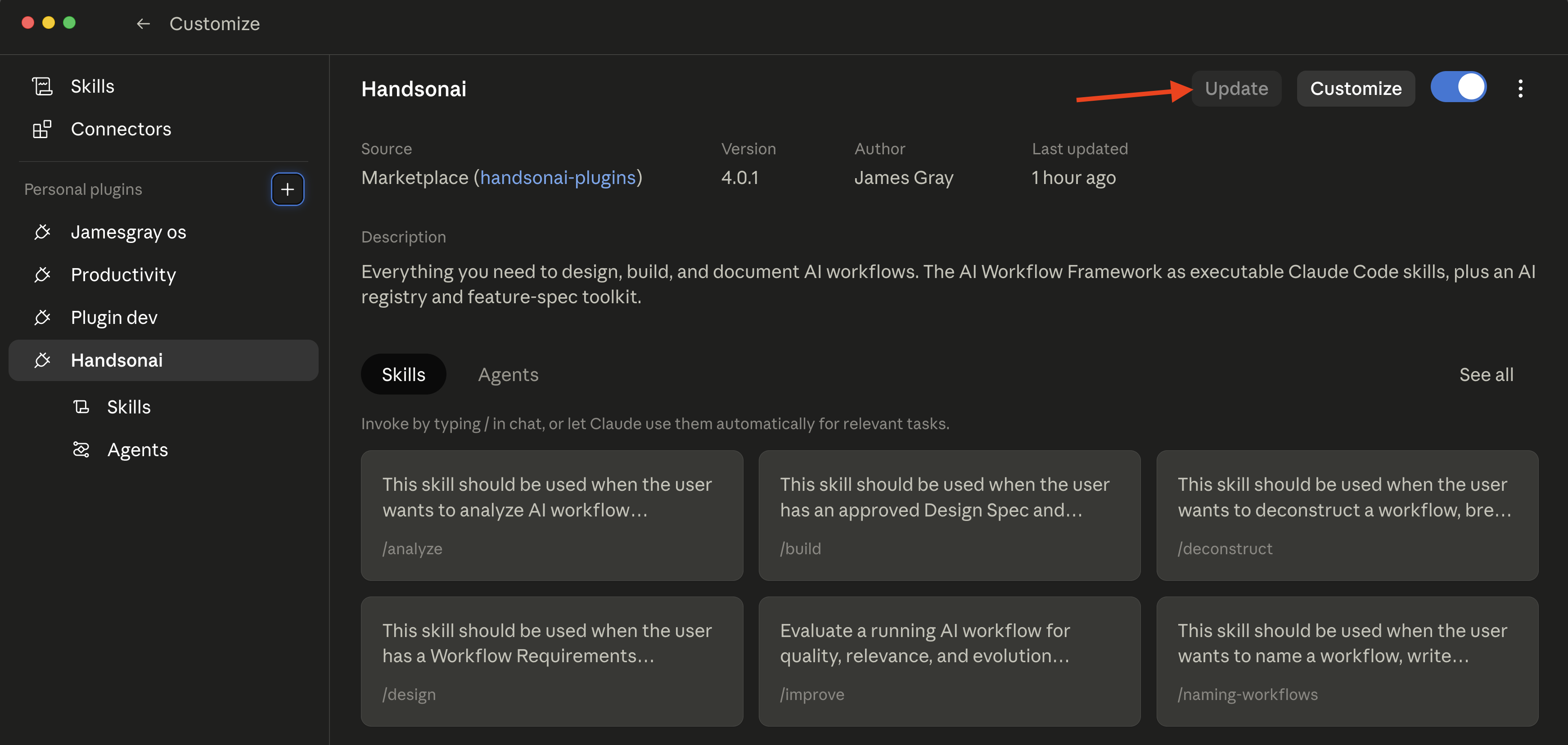
If you uploaded the plugin file: download handsonai-plugin.zip again from the downloads section and upload it the same way (Customize → Plugins → + → Upload).
If you uploaded ZIPs: re-download the skill from the downloads section and upload it again via Customize → Skills → + → Create skill → Upload a skill. It replaces the existing skill of the same name. Only refresh the skills you actively use.
In the Code tab or your terminal, run:
/plugin update handsonai@handsonaiOr update every installed plugin at once with /plugin update --all. To have the marketplace refresh on startup, run /plugin → Marketplaces tab → handsonai → Enable auto-update. See Using Plugins → Enabling auto-updates.
If you installed the plugin: in the ChatGPT desktop app, open Plugins, find the handsonai-plugins marketplace, and choose Check for updates (or Sync), then update Hands-on AI. Workspace-managed marketplaces sync automatically every day. From the Codex CLI: codex plugin marketplace upgrade, then start a new thread.
If you uploaded the plugin file: download handsonai-plugin.zip again from the downloads section and upload it the same way (Plugins → Add → Upload plugin archive). If ChatGPT keeps the old copy alongside the new one, remove the old one.
If you uploaded ZIPs: re-download the skill from the downloads section and upload it again under Plugins → Skills. If ChatGPT keeps the old copy alongside the new one, delete the old one.
Codex with folders on disk: replace the skill folder under ~/.agents/skills/ (or your project’s .agents/skills/) with the newly unzipped one, and start a new thread.
Spark: re-download the skill, then Skills → More (⋮) next to the skill → Replace skill → choose the new ZIP.
Gemini Enterprise: upload the new ZIP with + → Upload skill → Import; if the old version is still listed on your Skills page, uninstall it there.
If you uploaded the plugin file: download handsonai-plugin.zip again from the downloads section and upload it the same way (Customize → Plugins → Add plugin). If the old copy stays listed, remove it.
If you uploaded skill ZIPs: Cowork keeps duplicates rather than replacing, so: open Customize → Skills, open the old skill and click Delete, then upload the new ZIP with Upload skill. If you used the OneDrive folder method, just overwrite the folder under Documents/Cowork/skills/. Cowork picks up the change on your next conversation.
These tools read skills from a project folder, so refreshing means swapping the folder.
.agents/skills/<skill>/ (or .gemini/skills/<skill>/ for Gemini) with the new one.Once the skills are set up, here’s how to start on each platform. The same test works everywhere: ask “Help me analyze AI workflow opportunities” and you should get a short interview about your role and your work, not a generic answer.
| Platform | How to start |
|---|---|
| Claude | Start a new chat and describe what you need — Claude picks the right skill. In the desktop app, type / to see the skills listed. |
| Claude Code | Type /handsonai:analyze (or any slash command below), or describe your need. |
| ChatGPT | Switch to Work, type @analyze (or describe the task). In the Codex tab, type $analyze. |
| Google Gemini | Spark: type /analyze in a task, or describe it. Gemini Enterprise: @analyze or /analyze. |
| M365 Copilot | Start a Cowork conversation and describe what you need — Cowork loads the matching skill. |
| Cursor / Codex / Gemini CLI / Antigravity | Ask by skill name — “Use the analyze skill.” Skills are discovered automatically. |
Claude Code slash commands:
| Command | Skill |
|---|---|
/handsonai:analyze | Analyze — Step 1 |
/handsonai:deconstruct | Deconstruct — Step 2 |
/handsonai:design | Design — Step 3 |
/handsonai:build | Build — Step 4 |
/handsonai:test | Test — Step 5 |
/handsonai:run | Run — Step 6 |
/handsonai:improve | Improve — Step 7 |
Each skill is documented in detail on its step page — including the run sequence, example prompts, and outputs. This page focuses on installation; the step pages are the single source of truth for what each skill actually does.
| Skill | Step page |
|---|---|
analyze | Step 1 — Analyze |
deconstruct | Step 2 — Deconstruct |
design | Step 3 — Design |
build | Step 4 — Build |
test | Step 5 — Test |
run | Step 6 — Run |
improve | Step 7 — Improve |
framework-agent | Run It All at Once: framework-agent — orchestrates all seven skills end-to-end (the Claude desktop app and Claude Code, via the plugin) |
What if I lose context mid-conversation?
The file-based handoffs between steps mean you can continue in a new conversation. Just invoke the next skill and point it at the file from the previous step (e.g., “Use deconstruct on outputs/lead-qualification-requirements.md”).
Do I need Claude Code for all of this? No. These skills work on Claude (the Claude app and Claude Code), ChatGPT and Codex, Google Gemini (Spark, Gemini Enterprise, Gemini CLI, and Antigravity), Microsoft 365 Copilot, and Cursor. See Set Up These Skills above for your platform.
I’m on ChatGPT and don’t see Add a marketplace. Why? You’re probably on chatgpt.com in a browser. Adding a marketplace only works in the ChatGPT desktop app (Mac, Windows, or Linux). Open the app, go to Plugins → Add → Add a marketplace, and install there — the skills then work on the web and mobile too. If you’re already in the app, see the Before you start check under ChatGPT & Codex.
Plugin or ZIPs — which should I use?
The plugin, if your platform and plan allow it: one install, every skill. Add it from the marketplace if you can: updates take one click, and on Claude it adds the framework-agent orchestrator too. If you can’t, upload the plugin file, which has all the skills. ZIPs are the fallback for every other situation, and the skills work just as well that way.