
Using Plugins
Out of the box, Claude is a generalist. It can write, research, and analyze — but it doesn’t know your standards, your workflows, or your preferred formats. Every time you start a new conversation, you’d need to re-explain how you want things done.
Plugins solve this. A plugin packages domain expertise — methodology, naming conventions, documentation templates, spec-writing patterns — into a format Claude can use automatically. Install a plugin once and Claude gains that expertise across every session.
The result: Instead of writing long prompts to explain what you want, you describe your goal in plain language and Claude applies the right expertise automatically.
What’s Inside a Plugin
Section titled “What’s Inside a Plugin”The plugin format supports agents, skills, commands, hooks, and MCP server connections. The Hands-on AI plugin currently provides:
- Agents — Expert personalities that Claude activates automatically based on your request. The
framework-agentagent walks you through the full AI Workflow Framework. - Skills — Step-by-step workflows (an instruction file plus optional reference material) that teach Claude specific tasks. A skill might encode a methodology step, a documentation template, or a spec-writing pattern.
- Commands — Slash commands that trigger specific actions (like
/handsonai:analyzefor the Analyze step). - Hooks — Automations that run in response to events (e.g., running a linter after every file edit).
- MCP servers — Connections to external tools and services (e.g., GitHub, Slack, Jira).
The Hands-on AI plugin currently focuses on agents and skills. As it grows, it may also include hooks and connectors.
Agents vs Skills
Section titled “Agents vs Skills”| Agents | Skills | |
|---|---|---|
| What they are | Expert personalities (orchestrator, methodology guide) | Step-by-step workflows with instructions + reference material |
| How they activate | Claude automatically picks the right one based on your request | Automatically when relevant, or type /handsonai:skill-name |
| Where they work | Claude Code and Cowork (plugin sub-agents don’t run in Chat) | Claude Code, Claude Chat, and Cowork — via the plugin or a ZIP upload |
| Example | ”Walk me through the AI Workflow Framework” activates framework-agent | ”Name this workflow” loads naming-workflows conventions |
Transparency & Security
Section titled “Transparency & Security”The plugin is plain-text Markdown — there’s no compiled code or hidden logic. Every agent and skill is fully readable, so you can review exactly what instructions Claude receives before you install anything.
Review the source: All plugin files are open source in the handsonai-plugins GitHub repository. The plugin detail page lists every agent and skill with descriptions of what they do.
Getting Started in Claude Code
Section titled “Getting Started in Claude Code”Prerequisites
Section titled “Prerequisites”- Claude Code installed and working (Getting Started with Claude)
- An active Claude Pro, Max, Team, or Enterprise subscription (plugins are not available on the free plan)
Step 1: Add the Marketplace
Section titled “Step 1: Add the Marketplace”A marketplace is a collection of plugins hosted online. Adding it tells Claude Code where to find plugins you can install. You only need to add it once.
In your Claude Code session, type:
/plugin marketplace add jamesgray-ai/handsonai-pluginsThis tells Claude Code where to find the Hands-on AI plugin. It does not install anything yet. For more on how marketplaces work, see the official Discover and install plugins guide.
Step 2: Install the Plugin
Section titled “Step 2: Install the Plugin”To install the Hands-on AI plugin, type:
/plugin install handsonai@handsonaiAfter installing, the plugin’s agent and skills are available in your Claude Code session. Installed plugins are stored in ~/.claude/plugins/ on your machine.
Step 3: Use It
Section titled “Step 3: Use It”Installed plugins add an agent and skills that Claude Code can use automatically. You don’t need to call them by name — just describe what you need and Claude will use the right one.
Agent — just talk naturally
Section titled “Agent — just talk naturally”Describe what you need. Claude Code matches your request to the agent automatically.
Examples:
"Walk me through the AI Workflow Framework for this workflow"→ framework-agent activates
"Help me apply AI to my client onboarding process"→ framework-agent activates and starts at Analyze
Claude Code shows which agent it selected at the top of the response. You can list all available agents with /agents.
Skills — natural language or slash commands
Section titled “Skills — natural language or slash commands”Skills activate the same way — describe what you need and the relevant skill loads automatically.
You can also invoke a skill directly with a slash command. The format is /handsonai:command:
| Slash command | What it does |
|---|---|
/handsonai:analyze | Audit your workflows to find AI opportunities |
/handsonai:deconstruct | Break a workflow into structured steps |
/handsonai:design | Design the AI workflow architecture |
/handsonai:build | Generate platform-appropriate artifacts |
/handsonai:test | Test artifacts and evaluate output quality |
/handsonai:run | Do the first real run and leave a Run Card |
/handsonai:improve | Evaluate a running workflow |
/handsonai:scaffolding-registry | Stand up your registry bundle — SCHEMA.md and your Business, Line of Business, Function, and Process nodes |
/handsonai:naming-workflows | Generate consistent workflow names + registry entry |
/handsonai:writing-workflow-sops | Write a Standard Operating Procedure |
/handsonai:writing-process-guides | Write a Business Process Guide |
/handsonai:indexing-registry | Lint your registry bundle and regenerate the REGISTRY.md index and dashboard |
/handsonai:writing-vision-briefs | Capture a fuzzy idea as a Vision Brief |
/handsonai:writing-feature-prds | Write a feature PRD with user stories and acceptance criteria |
The plugin detail page describes each one in depth, with example prompts and expected outputs.
Checking what’s installed
Section titled “Checking what’s installed”/plugin listThis shows all installed plugins with their agents and skills. For the full plugin management commands (scopes, updates, disabling), see the official Discover and install plugins documentation.
Using Skills in Claude Chat (Web and App)
Section titled “Using Skills in Claude Chat (Web and App)”Claude Chat — on the web at claude.ai or in the Chat tab of the Claude app — runs the same skills as Claude Code, with no terminal required. There are two ways in, both under Customize in the left sidebar.
Install the plugin (paid plans)
Section titled “Install the plugin (paid plans)”Plugins install in Chat with the same steps as in Cowork, and a plugin’s skills work in both (Anthropic notes that plugins you add yourself on Desktop and in Cowork are stored on that computer — if a plugin doesn’t show up on another surface, add the marketplace there too):
- In the left sidebar, click Customize, then the Plugins tab
- Click + → Add marketplace → Add from a repository, type
jamesgray-ai/handsonai-plugins, and click Sync - Click Install on the handsonai card
Plugin sub-agents (the framework-agent orchestrator) and hooks run only in Cowork; the skills work everywhere. Step-by-step with screenshots: Install the Hands-on AI Plugin — Claude.
Upload a plugin skill to Claude Chat
Section titled “Upload a plugin skill to Claude Chat”Use this on the Free plan, or when your organization disables personal plugins. You can take any plugin skill and upload it individually.
Prerequisites: Code execution enabled under Settings → Capabilities (this lets Claude run skills — it does not give Claude access to your computer).
1. Get the skill ZIP
The fastest path is to download the pre-built ZIPs from the skill downloads or GitHub Releases. Every skill in the plugin is published as an individual .zip file with each release.
If you’ve installed the plugin in Claude Code, you can also zip the skill folder yourself from your local plugin directory at:
~/.claude/plugins/marketplaces/handsonai/plugins/handsonai/skills/<skill-name>/If you’re comfortable with Terminal, this is faster. Otherwise, use the Finder method. Open Terminal and paste this command, replacing <skill-name> with the actual name:
cd ~/.claude/plugins/marketplaces/handsonai/plugins/handsonai/skills && \ zip -r ~/Desktop/<skill-name>.zip <skill-name>/Concrete example for analyze:
cd ~/.claude/plugins/marketplaces/handsonai/plugins/handsonai/skills && \ zip -r ~/Desktop/analyze.zip analyze/The ZIP file appears on your Desktop.
- Open Finder
- From the menu bar, click Go → Go to Folder… (or press Cmd + Shift + G)
- Paste this path and press Enter:
~/.claude/plugins/marketplaces/handsonai/plugins/handsonai/skills/
- Right-click the skill folder (e.g.,
analyze) and choose Compress
2. Upload to Claude Chat
Click Customize in the left sidebar → Skills → + → Create skill → Upload a skill, and select your .zip file.
3. Toggle the skill on
Find your uploaded skill in the Skills list and enable it.
4. Start using it
Open a new chat and describe your need. Claude automatically uses the skill when relevant.
Walkthrough: analyze in Claude Chat
Section titled “Walkthrough: analyze in Claude Chat”The analyze skill is the entry point to the AI Workflow Framework — find AI opportunities in your work.
- Path:
~/.claude/plugins/marketplaces/handsonai/plugins/handsonai/skills/analyze/ - Contents:
SKILL.mdand reference files - Terminal zip command:
Terminal window cd ~/.claude/plugins/marketplaces/handsonai/plugins/handsonai/skills && \zip -r ~/Desktop/analyze.zip analyze/ - Test prompt in Claude Chat: “Help me find where AI could create the most value in my work”
Claude applies the framework methodology from the skill’s reference file automatically.
What about agents in Claude Chat?
Section titled “What about agents in Claude Chat?”Plugin sub-agents run only in Cowork and Claude Code — in Claude Chat they appear grayed out. Agent files have a different format from skill files and cannot be uploaded as skills. For agent-like behavior in Chat, you can:
- Use Cowork, where the plugin’s
framework-agentorchestrator is available - Create a Project and paste the agent’s instructions as custom instructions
- Convert the agent into a skill (wrap its instructions in a
SKILL.mdfile)
Skill compatibility across platforms
Section titled “Skill compatibility across platforms”All 15 skills work fully across Claude Code, Claude Chat, and Cowork — via the plugin or a ZIP upload.
| Skill | Claude Code | Claude Chat | Cowork | Notes |
|---|---|---|---|---|
analyze | Full | Full | Full | Pure instructions + reference docs |
deconstruct | Full | Full | Full | Pure instructions + reference docs |
design | Full | Full | Full | Pure instructions + reference docs |
build | Full | Full | Full | Pure instructions + reference docs |
test | Full | Full | Full | Pure instructions + reference docs |
run | Full | Full | Full | Pure instructions + reference docs |
improve | Full | Full | Full | Pure instructions + reference docs |
building-knowledge-graph | Full | Full | Full | Writes files to the project folder — no external services |
scaffolding-registry | Full | Full | Full | Writes registry bundle nodes — no external services |
naming-workflows | Full | Full | Full | Writes registry nodes — no external services |
writing-workflow-sops | Full | Full | Full | No external services |
writing-process-guides | Full | Full | Full | No external services |
indexing-registry | Full | Full | Full | No external services |
writing-vision-briefs | Full | Full | Full | Pure instructions |
writing-feature-prds | Full | Full | Full | GitHub CLI recommended for issue creation |
Using Plugins in Claude Cowork
Section titled “Using Plugins in Claude Cowork”Cowork is a visual workspace inside the Claude Desktop app (macOS) designed for non-technical work — writing, research, analysis, and project coordination. You set the goal and Claude delivers finished, professional work. It’s available on Claude Pro, Max, Team, and Enterprise plans.
Cowork has its own built-in plugin directory, so you don’t need Claude Code or a terminal to use plugins. The directory includes plugins across productivity, marketing, legal, finance, data analysis, and more — browse the full catalog at claude.com/plugins-for/cowork.
Install a plugin in Cowork
Section titled “Install a plugin in Cowork”- Open the Claude app and click the Cowork tab
- In the left sidebar, click Customize, then the Plugins tab (or Browse plugins)
- Browse the directory, or click + → Add marketplace → Add from a repository and type
jamesgray-ai/handsonai-pluginsfor the Hands-on AI plugin - Click Install on the plugin card
A plugin’s skills work in Claude Chat and Cowork alike (hooks and sub-agents are Cowork-only). Plugins you add yourself on Desktop are stored locally, so if one doesn’t appear on another surface, add the marketplace there too. Step-by-step with screenshots: Install the Hands-on AI Plugin — Claude.
What Cowork offers with plugins
Section titled “What Cowork offers with plugins”- Plugins bundle skills, connectors, slash commands, and sub-agents
- Cowork coordinates parallel workstreams and delivers professional outputs (Excel, PowerPoint, formatted docs)
- Pairs with Claude in Chrome for browser-based tasks
- Pairs with MCP connectors for external tool access (e.g., Slack, Google Drive)
- Plugins are saved locally to your machine
Cowork vs Claude Code
Section titled “Cowork vs Claude Code”| Cowork | Claude Code | |
|---|---|---|
| Interface | Visual — no terminal needed | Terminal-based |
| Plugin discovery | Customize → Plugins or the plugin directory | /plugin install command |
| Agent activation | Via plugin commands | Auto-routing based on request |
| Best for | Knowledge workers, non-technical users | Developers, coding tasks |
| Plugin format | Same plugin files | Same plugin files |
Both support the same plugin format and skill files. If you’re not comfortable with the terminal, Cowork is the recommended path.
Download from GitHub
Section titled “Download from GitHub”Every file is plain-text Markdown — no compiled code, no special format. You don’t need Claude Code or plugins to use them. Download the skill ZIPs and place them in your platform’s skill directory, or upload them where your platform has an upload button. See Install the Hands-on AI Plugin for step-by-step instructions on every platform.
Skill ZIPs: direct download links, one per skill · GitHub Releases
Source: Browse the plugin on GitHub
Other ways to use them:
- Upload to Claude Chat — upload a skill ZIP under Customize → Skills (detailed instructions)
- Use via the Claude API — embed skill content in the
systemparameter (code example)
Using Skills via the Claude API
Section titled “Using Skills via the Claude API”For developers
Skills can be used programmatically through the Claude API in two ways.
Skills API
Section titled “Skills API”Upload custom skills via the /v1/skills endpoints, then reference them by skill_id in conversations:
import anthropic
client = anthropic.Anthropic()
# Reference an uploaded skill by IDresponse = client.messages.create(    model="claude-sonnet-4-20250514",    max_tokens=4096,    skill_ids=["sk_analyze"],    messages=[        {"role": "user", "content": "Help me find AI opportunities in my workflow."}    ])
System prompt approach
Section titled “System prompt approach”Alternatively, embed the content of SKILL.md (and any reference files) directly in the system parameter:
import anthropic
client = anthropic.Anthropic()
# Read SKILL.md contentwith open("analyze/SKILL.md") as f:    skill_content = f.read()
response = client.messages.create( model="claude-sonnet-4-20250514", max_tokens=4096, system=skill_content, messages=[ {"role": "user", "content": "Help me find AI opportunities in my workflow."} ])Managing Plugins
Section titled “Managing Plugins”Updating plugins
Section titled “Updating plugins”When the plugin is updated with new agents, skills, or improvements, pull the latest version:
/plugin update handsonai@handsonaiOr update all installed plugins at once:
/plugin update --allEnabling auto-updates
Section titled “Enabling auto-updates”By default, Claude Code only auto-updates official Anthropic marketplaces. Third-party marketplaces like Hands-on AI have auto-updates disabled, so you won’t receive new agents, skills, or fixes automatically.
To enable auto-updates for the Hands-on AI marketplace:
- Run
/pluginto open the plugin manager - Select the Marketplaces tab
- Choose handsonai from the list
- Select Enable auto-update
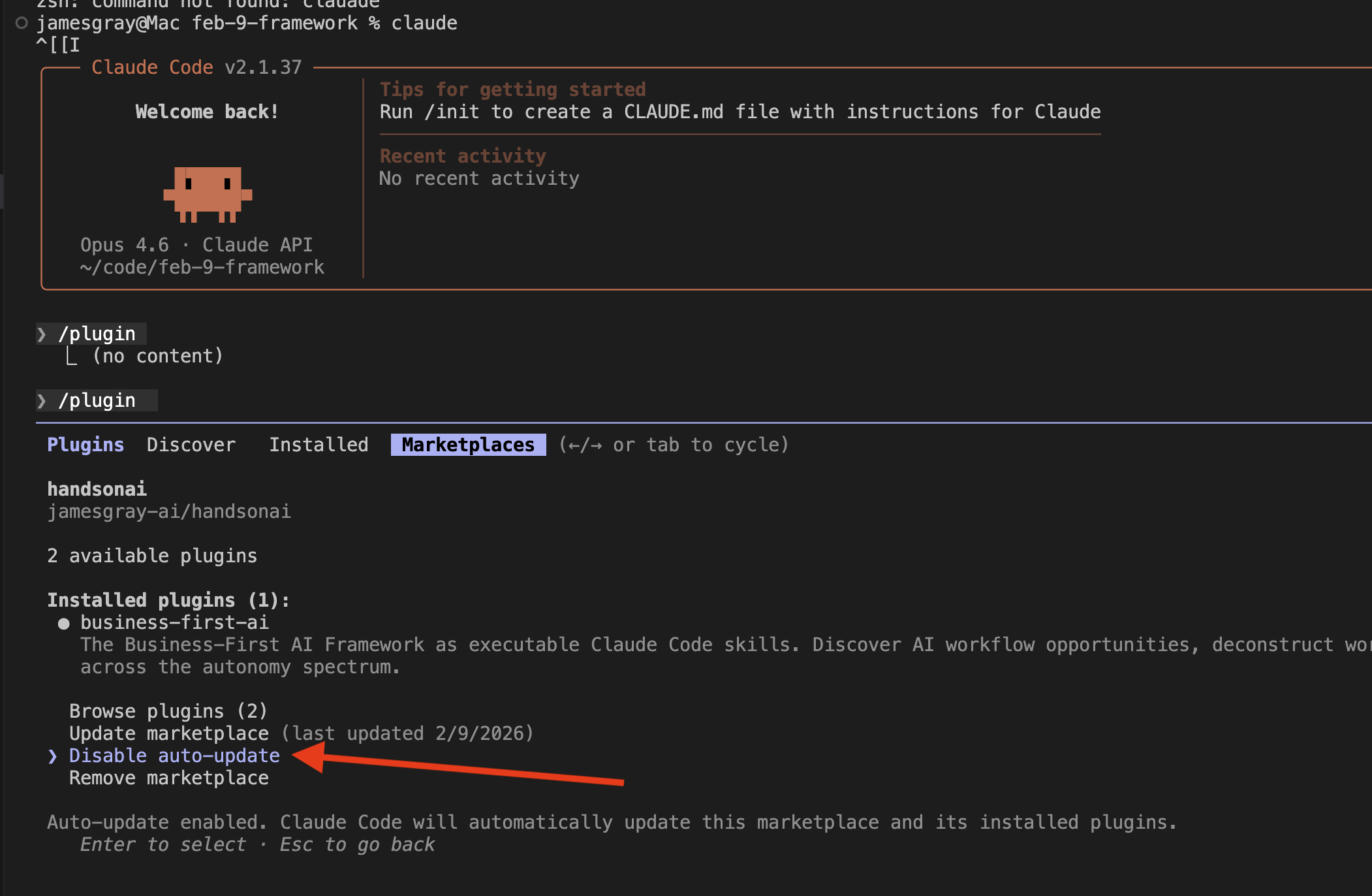
Once enabled, Claude Code refreshes the marketplace and updates installed plugins each time it starts. If any plugins were updated, you’ll see a notification suggesting you restart Claude Code.
For more details on auto-update behavior and environment variables, see the official Configure auto-updates documentation.
Uninstalling
Section titled “Uninstalling”To remove the plugin:
/plugin uninstall handsonai@handsonaiTo remove the marketplace entirely:
/plugin marketplace remove handsonaiMigrating from the old plugins
Section titled “Migrating from the old plugins”If you previously installed business-first-ai, ai-workflow-examples, ai-registry, or agentic-coding, here’s the one-time migration:
/plugin uninstall business-first-ai@handsonai/plugin uninstall ai-workflow-examples@handsonai/plugin uninstall ai-registry@handsonai/plugin uninstall agentic-coding@handsonai/plugin install handsonai@handsonaiThe skills you used (analyze, name-workflow, feature-prd, etc.) are all still here — only the plugin name and namespace changed. Slash commands move from /business-first-ai:analyze to /handsonai:analyze, etc.
The example agents and skills that aren’t in the new plugin (HBR-style writing, vendor-specific researchers, LinkedIn prospecting) live on as study material in the Example Gallery — copy and customize them if you used them.
Cowork and Claude Chat users: update from Customize → Plugins — Check for updates on the marketplace, then Update on the plugin (see Update the Skills). The migration notes above apply equally.
Platform Summary
Section titled “Platform Summary”| Capability | Claude Code | Claude Chat | Cowork | API |
|---|---|---|---|---|
| Plugin install | /plugin install | Customize → Plugins (paid plans), or upload skills as ZIP | Customize → Plugins, or upload skills as ZIP | Skills API |
| Agent auto-routing | Yes | No (sub-agents don’t run in Chat) | Yes (via plugin) | No |
| Skills (auto-trigger) | Yes | Yes | Yes | Yes (Skills API) |
| Skills (slash command) | /handsonai:command | No | / commands | No |
| MCP / Connectors | Yes | Some skills (via MCP) | Yes (connectors) | No |
| Browser automation | No | No | Yes (Chrome) | No |
| Reference file loading | Automatic | Automatic (plugin) / included in ZIP | Automatic | Manual |
| Best for | Developers | Quick skill use, any device | Knowledge work, non-technical users | Programmatic access |
Troubleshooting
Section titled “Troubleshooting””Marketplace not found”
Section titled “”Marketplace not found””Make sure you’ve added the marketplace first:
/plugin marketplace add jamesgray-ai/handsonai-plugins“Plugin not found”
Section titled ““Plugin not found””Check the plugin name is spelled correctly and includes the @handsonai suffix:
# Correct/plugin install handsonai@handsonai
# Wrong — missing marketplace suffix/plugin install handsonai
“Permission denied” or authentication errors
Section titled ““Permission denied” or authentication errors”The marketplace is public. If you see authentication errors, check your GitHub CLI configuration (GitHub CLI Setup guide).
Run this in your terminal (not inside Claude Code):
gh auth status“I installed the plugin but nothing happens”
Section titled ““I installed the plugin but nothing happens””Restart your Claude Code session. Then verify the plugin is installed:
/plugin listIf the plugin appears but the agent doesn’t activate, try being more explicit in your prompt — for example, “Walk me through the AI Workflow Framework for my client onboarding process” rather than just “help me with onboarding."
"Skill not working in Claude Chat”
Section titled “"Skill not working in Claude Chat””- Check that code execution is enabled in Settings > Capabilities
- Check the compatibility table for platform notes
- Make sure the skill is toggled on in your Skills list
”ZIP upload failed”
Section titled “”ZIP upload failed””- The ZIP must contain a folder with
SKILL.mdinside it — not loose files at the root - The
namefield inSKILL.mdfrontmatter must use only lowercase letters, numbers, and hyphens - The ZIP file should not exceed the upload size limit
”Can’t find skill files”
Section titled “”Can’t find skill files””If you’ve added the marketplace, skill files are on your machine at:
~/.claude/plugins/marketplaces/handsonai/plugins/handsonai/skills/<skill-name>/You can also browse the skill source on GitHub at https://github.com/jamesgray-ai/handsonai-plugins, or download any skill as a ZIP from:
https://github.com/jamesgray-ai/handsonai-plugins/releases/latestNext Steps
Section titled “Next Steps”- The Hands-on AI Plugin — see what’s included with example prompts for each agent and skill
- AI Registry setup — how the Markdown-based AI Registry works
- Example Gallery — copy and customize example agents, skills, and prompts